Principals
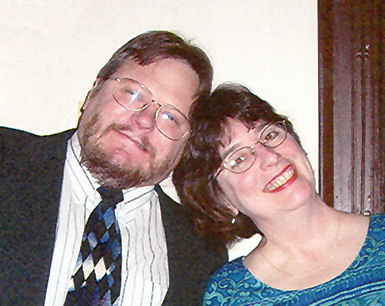
Victor Stanwick and Susan Fowler
History
Established in 2008, Fast Smart Web Design is a follow-up to FAST Consulting, a usability testing and consulting firm started in 1990. Fast Smart Web Design takes advantage of the principals' long experience working in Fortune 500 corporations (for example, Telcordia Technologies and IBM). We bring the high levels of analysis, skills, and expertise developed in that world into the world of non-profits and small businesses.
Susan Fowler, Owner, President
Susan Fowler is a senior-level consultant on business, information
technology, non-profit, and educational projects and has been a manager
and team leader for both for-profit and non-profit organizations. A vice president of the usability testing firm FAST Consulting, she is
experienced in lab-based usability testing, remote unmoderated testing,
surveys, design (including prototypes and wireframes), and online conferencing
and teaching.
Susan is author, with Victor Stanwick, of three user-interface books: Web Application Design
Handbook, GUI Style Guide, and the GUI Design Handbook.Susan
does specifications, analysis, documentation, client meetings, usability
testing, and reports.
Victor Stanwick, Vice President
Victor Stanwick is a graphic artist, interface designer, technical
writer, cartoonist and co-author, with Susan, of Web Application
Design Handbook, GUI Style Guide, and the GUI Design Handbook.
He has worked in many different industries, from computer repair
to diesel engineer to blacksmith to land surveyor, giving him a unique
perspective on how people interact with various tools and how this interaction
can be improved. He is familiar with design from both a hardware and
software perspective. He is the owner of FAST
Consulting and Victor
R. Stanwick, Cabinetmaker.
Victor does visual design; logo design; artwork; online help and documentation;
and programming. |